
Over from the Arr programs, without touching a file
Switching has two parts. First nexcrate takes over what Radarr, Sonarr and Lidarr have been doing, with their library and their files. Then you switch the programs that used to request from the Arr programs over to nexcrate: Nexview and nexbeat, from ARR mode to NEX mode.
Know this first
- The files stay where they are. Taking over only changes who keeps track of them. Nothing is moved, renamed or deleted. nexcrate puts a small
release.nexnext to every title; that is all that is added on disk. - Every Arr instance becomes a version. Radarr and Radarr 4K become two versions of the same movie. Which ones, you decide when you connect.
- Programs that hang on Radarr's or Sonarr's API stay behind. Bazarr, Seerr, Recyclarr, Home Assistant's Arr integrations and the like do not talk to nexcrate. For requests there are Nexview and nexbeat in NEX mode, for cards there is nexdeck.
- Two Sonarr series on one TMDB title are not merged. nexcrate counts by TMDB, and where Sonarr keeps two series that are one at TMDB, the import skips the second and writes a line to the log.
- Music has one version. Several Lidarr instances cannot be spread over several music versions.
- Make a backup before you take over: in nexcrate under Settings › System › Backups, and of Radarr, Sonarr and Lidarr the way you know it from there.
1. Connect
Before that: nexcrate runs, the TMDB token is entered, and nexcrate sees the folders your media is in (Media and hardlinks).
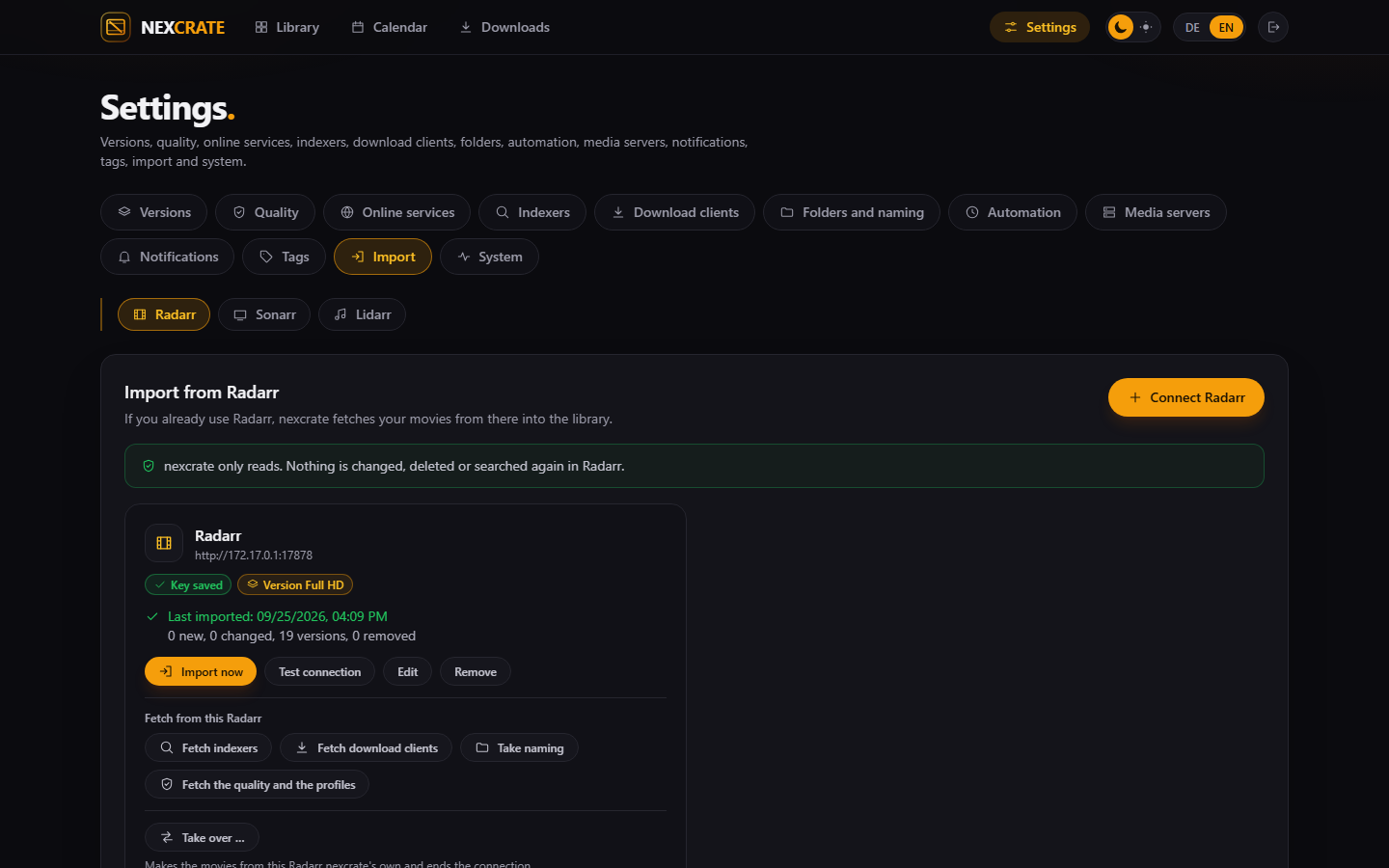
- Open the importUnder Settings › Import pick the tab Radarr, Sonarr or Lidarr and press Connect Radarr (or the same for the others).
- Fill inA name, such as "Radarr 4K", the address you open Radarr with in the browser, including the port, and the API key from Radarr under Settings, General.
- Pick the versionEvery movie from this Radarr becomes this version in nexcrate. If it does not exist yet: Create a new version.
- Repeat for every instanceTwo Radarr, one Sonarr, one Lidarr means four connections.
2. Trial run
As long as a connection is not taken over, Radarr stays in charge. nexcrate reads it again every 15 minutes, Lidarr every hour, and shows your library, but loads nothing for these titles. Nothing is changed, deleted or searched again in Radarr.
That is the time to look around: whether the library arrives complete, how the profiles decide, what a search by hand would find. For as long as you like.
3. Fetch the settings
Every connection has four buttons. Each only reads and shows what it would take first; nexcrate never writes into Radarr.
- Fetch indexers: the indexers with their address and categories. Radarr does not give out API keys, so you enter an indexer's key once yourself.
- Fetch download clients: address and settings. Radarr does not give out keys and passwords here either. nexcrate uses a category of its own so that a Radarr still running does not grab its downloads.
- Fetch the quality and the profiles: quality profiles, custom formats and sizes. The profiles land under Settings › Quality › Profiles; which one a version takes, you choose on the version. The delay profile without a tag becomes the version's waiting time.
- Take naming: the patterns for folders and files. Existing files keep their names.
If you would rather start fresh, leave the profiles and use the assistant.
4. Take over
Now the connection becomes nexcrate's own version. At the very bottom of the connection: Take over …
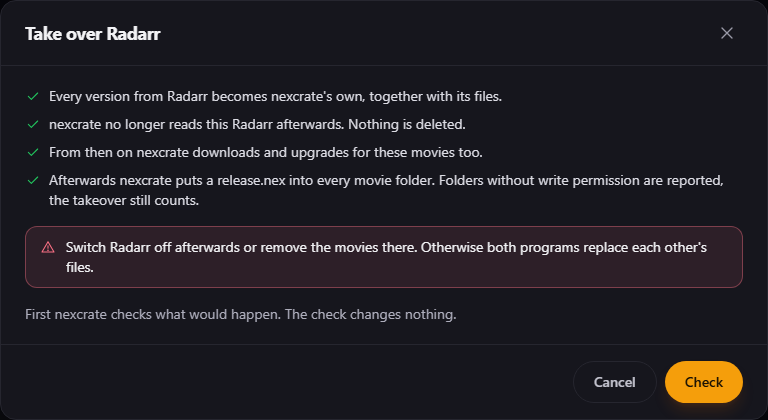
- CheckThe check changes nothing. nexcrate reads Radarr fresh and shows how many titles and files come along, what Radarr is still loading and what changes compared to Radarr, for example the recycle bin or extra files.
- Match the foldersRadarr and nexcrate often see the same movies under different paths. nexcrate matches them by sample files of the same size. If it finds no matching folder, pick it with Choose folder and check again. A Radarr folder that holds files has to be matched.
- Running downloadsIf Radarr is loading something for this connection right now, best wait until it is filed away, then check again.
- Do not upgrade what is thereTicked by default: what the connection brings stays as it is. nexcrate still searches what is missing, and what arrives later is upgraded as usual. Without the tick nexcrate starts improving the library to your profile right away.
- Take over and end the connectionAfterwards nexcrate no longer reads this instance, keeps the titles itself and writes the
release.nexfiles. For shows and music it also reads the folders for files Sonarr or Lidarr did not know.
While nexcrate reads the show folders after a takeover, it searches nothing for those shows. Files that do not clearly match one episode stay where they are and show up on the show's page under "Not assigned" instead of being guessed. For music, nexcrate only searches an album with unclear files once you have sorted them out.
5. Switch Radarr, Sonarr and Lidarr off
Switch Radarr off after the takeover or remove the movies there. Otherwise both programs replace each other's files. The same goes for Sonarr. In Lidarr it is enough to switch monitoring off or remove the artists.
- Switch the automation on under Settings › Automation. Until then nexcrate searches nothing by itself.
- Check that every version has a profile and a default folder. If one is missing, the automation loads nothing for that version, and the library says so.
- Companion files under Settings › Folders and naming › Companion files: there you see whether every
release.nexcould be written. Folders without write permission are reported; the takeover still counts. - Media servers under Settings › Media servers, so that Plex, Jellyfin or Emby see new titles right away.
Undo
A connection that was taken over stays in the list, for exactly this case. Undo takeover puts the bookkeeping back: nexcrate reads the instance again, its versions come from there again, and the release.nex files nexcrate wrote are removed. Files changed by hand are left alone.
What nexcrate loaded since the takeover, Radarr does not know. The files stay where they are, and nexcrate shows Radarr's state again. A naming that was taken over stays on the version. If nexcrate deleted the API key when taking over, you enter it again.
Without an Arr: read folders
If movies, shows or music sit on disk that no Arr program knows, nexcrate reads them in directly. Read folders is in the empty library and on the page of the folders. nexcrate suggests a title for every folder, and you confirm or pick by hand. If a folder already carries a release.nex, for example after a lost database, it is restored without guessing.
Nexview: from ARR mode to NEX mode
From version 1.0.0 Nexview has two modes. ARR requests from Radarr and Sonarr, NEX from nexcrate. It is one switch for movies and shows together; there is no mixed mode. In NEX mode your people pick a nexcrate version when they request instead of standard or 4K, and the rights belong to versions.
What disappears from Nexview in NEX mode, because nexcrate does it itself: the quality wizard, naming, path mapping, webhooks, the download collision check, profile and folder at approval.
A new installation
Nexview's setup asks Who procures the titles? Pick nexcrate, then Connect nexcrate: enter the address and pair. The request appears in nexcrate, you compare the code and confirm. You copy no key at all. Then Nexview asks Who may request which version?, with a tick per version for everyone.
Switching an existing installation
Part 1 first: nexcrate has to know the titles that something in Nexview depends on. Then in Nexview under Settings › Services › Switch to nexcrate. The assistant has seven steps:
- What changesWhich instances are affected, how many open requests and storage entries come along, what Radarr and Sonarr are still loading. That finishes there; Nexview no longer sees it afterwards.
- Connect to nexcratePair or enter a key. Nexview needs the scopes Request and Operate. A finding marked red stops here.
- Which version becomes what?Every tier so far, such as Radarr and Sonarr 4K, gets exactly one nexcrate version or "None". Two tiers on the same version are not allowed.
- Does nexcrate know the titles?A probe over everything something in Nexview depends on. Unknown usually means the import from Radarr and Sonarr has not run yet. Open requests for unknown titles do not block; Nexview places them with nexcrate itself when switching.
- These entries need a decisionStorage entries without a counterpart in nexcrate: leave them, or first bring the titles into nexcrate and check again.
- BackupCreate backup. It is the only way back, and without it there is no next step.
- SwitchSwitch now rewrites every request, every storage entry and every permission onto the versions from nexcrate. Only once that has worked does Nexview remove its webhook entries from Radarr and Sonarr and delete the credentials. Afterwards Hand over approved requests passes what was approved on to nexcrate.
There is no way back except the backup. After switching, nexcrate does the procuring, and Nexview no longer knows Radarr and Sonarr. Nothing is deleted in Radarr and Sonarr themselves.
nexbeat: from ARR mode to NEX mode
nexbeat works with exactly one program, Lidarr or nexcrate. You switch under Settings › Target, in Where requests go: NEX mode.
- AddressUnder Connection enter the nexcrate address.
- PairConnect to nexcrate. Every page of nexcrate then says at the top that nexbeat wants to connect. Compare the code and confirm with Read and Request. If you would rather make a key: Enter a key by hand, with the same two scopes.
- Readinessnexbeat tells you whether the music version in nexcrate is ready: profile, folder, an indexer with music categories, a download client, no longer fed by Lidarr.
nexcrate searches requested albums at once, even with the music automation off. Requesting a whole artist gets their studio albums and future studio albums; EPs, singles, live recordings and compilations stay out. nexbeat changes nothing in Lidarr when you switch.